
Canva can be used to create stunning presentations, either from many of their pre-existing templates (which can easily be customised) or by starting from scratch with a blank presentation.
The essential takeaway: Canva has a dedicated set of presentation‑mode shortcuts that let you navigate slides, trigger Magic Shortcuts, animations, draw on slides, and jump to specific pages, but all without touching the mouse. Very useful for people who frequently deliver presentations, or want to look professional while delivering.
Keyboard shortcut to start a presentation in Canva
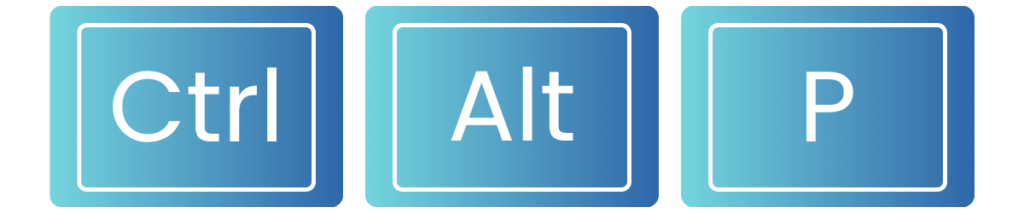
To enter presentation mode in Canva, use the shortcut Ctrl + Alt + P (on Windows, or Cmd + Option + P if you’re on a Mac)
Starting and controlling your presentation
| Action | Windows | Mac |
|---|---|---|
| Enter Presentation mode | Ctrl + Alt + P | Cmd + Option + P |
| Move to the next slide | Right Arrow → or Spacebar | Right Arrow → or Spacebar |
| Move to the previous slide | Left Arrow ← | Left Arrow ← |
| Jump to the first slide | Home | Home or Fn + Left Arrow ← |
| Jump to the final slide | End | End or Fn + Right Arrow → |
| Jump to a specific slide | Ctrl + Alt + G Type the slide number Press Enter | Cmd + Option + G Type the slide number Press Enter |
| Exit the presentation | Esc | Esc |
| Open the Magic Shortcuts menu | ? or Shift + / | ? or Shift + / |
Canva keyboard shortcuts while presenting
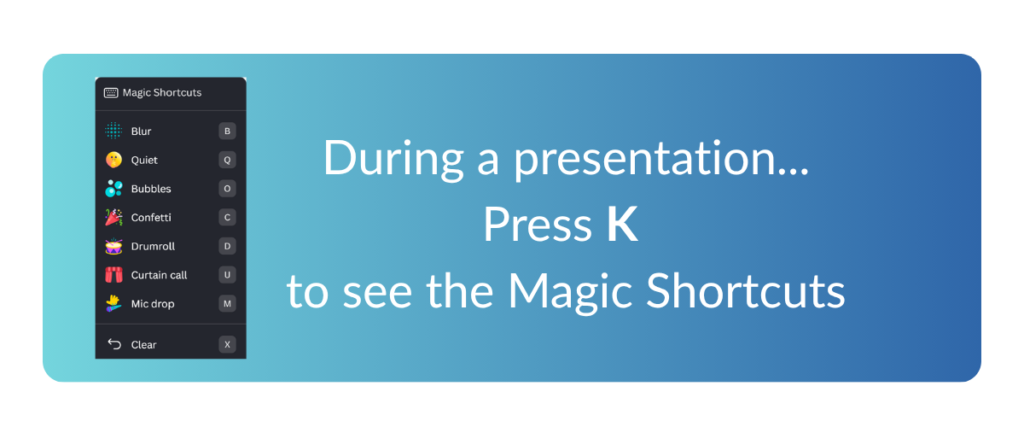
You can add some fun effects during a presentation. Canva calls these “Magic Shortcuts”. A Magic Shortcut is triggered live, during the presentation, and is shown on whichever slide is currently on screen. The magic shortcuts include:
| What it does | Key to use | Why you might use it |
|---|---|---|
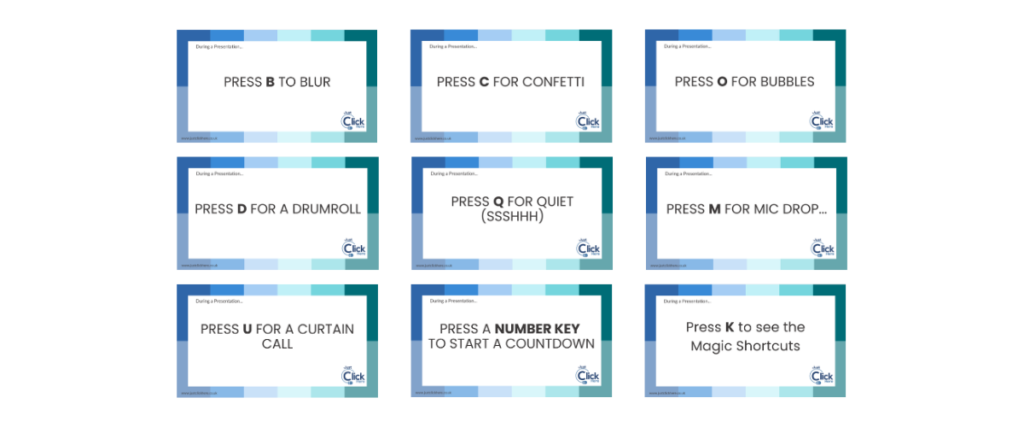
| Blurring a presentation | Press B | use B to bring attention back to the presenter |
| Adds Confetti | Press C | use C to celebrate a result |
| Adds a Drum roll | Press D | use D before revealing quiz answers |
| Mic drop | Press M | use M after a strong final point, key takeaway or surprising fact |
| Adds Bubbles | Press O | use O to create a sense of ideas appearing |
| Quiet (shhh!) | Press Q | use Q before starting your presentation |
| Curtain Call | Press U | use U to temporarily cover the slide before revealing something important |
| Add a Timer | Press a number key (For example, pressing 1 counts down from 1 minute, pressing 2 counts down from 2 minutes etc) If you press 0 (zero) you get a 3 second timer. | use 1–9 for learner activities, use 0 to get answers quickly e.g. in an online poll or quiz |
| Stop the Timer | Press X | |
| To move forward to the next slide | Press → (right arrow) | |
| To move back a slide | Press ← (left arrow) |
With most of these magic shortcuts, you press the letter once to start the effect, then again to stop it. So, for example if you press B during a presentation, the slide will be burred. This would allow the audience to focus on you, rather than the slide. Pressing B again will remove the effect. A lot of these magic shortcuts suit friendly training sessions, classroom activities and creative presentations better than serious business updates.
How to see the Magic Shortcuts during a presentation
Seasonal?
Canva also add some extra shortcuts tied to the time of year, for example S for spider and G for ghost around Halloween, and I for pie or F for falling leaves around Thanksgiving. These aren’t part of the permanent set above, so pressing S when it isn’t Halloween doesn’t add a spider to your presentation.
To end a presentation in Canva…

To end presentation mode in Canva, press Esc
Quick Canva Keyboard Quiz
How well do you know Canva presentation shortcuts?
Test your knowledge of the essential keyboard shortcuts for Canva presentations.
Quiz Complete!
What do the Magic Shortcuts look like?
This blog post covers using keyboard shortcuts in Canva during presentations. For information about all other keyboard shortcuts in Canva, just click here.
Keyboard Shortcuts for Presentations Video Tutorial
I hope you enjoyed these keyboard shortcuts during presentations in Canva. If you know of any other ones, please add them to the comments section below 🙂
A quick reference guide showing all Canva keyboard shortcuts (or, at least all the keyboard shortcuts that I know of!) is available on my blog here and as a downloadable .pdf in the Resources Section of this website.
There is also a blog post about general keyboard shortcuts in Canva available here, and one about keyboard shortcuts when working with text here.
I hope you find them useful!
M – does a mic drop
G – summons a ghost
S – summons a spider
U – adds a red curtain
(i think dats all ik that is not here ᕙ(⍢)ᕗ)
Thank you! I really appreciate the fact you took the time to comment. I can’t get G or S to work… perhaps it was for Halloween?? (starts counting days until next Halloween…)