
If you open a blank workbook in Microsoft Excel or Google Sheets, your cursor will automatically land in cell A1. It is the top-left corner, the starting line, the default. It feels completely natural to just start typing your headers right there.
But if you look over the shoulder of an experienced spreadsheet user, you may notice a slightly unusual habit: rather than starting immediately in A1, they’ll sometimes leave column A and row 1 blank and begin their main content in B2.
Why? It isn’t just a quirky habit. Leaving a little space around your working area can offer some surprisingly useful advantages, particularly when you’re building reports, trackers and spreadsheets designed for people to use. Let’s look at why…
1. Visual Breathing Room
When text or numbers sit directly against the top-left corner of the grid, the data can look cramped. It bumps right up against the software’s interface (the row numbers and column letters).
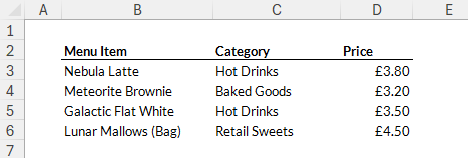
Leaving column A and row 1 blank creates an instant margin. It gives the sheet a clean, presentation-ready look immediately, without you needing to fiddle with gridlines or borders. Notice how much more polished this Moon & Mallow menu looks with a little bit of padding around it:
2. Flexible Navigation and Controls
As your spreadsheet grows, you might want to add high-level dashboard controls, filters, or status trackers. Reserving row 1 and column A makes it incredibly easy to add these elements later without disrupting your main data table.
- Row 1: Perfect for placing a global drop-down filter or a dashboard summary.
- Column A: You can shrink this column to just a few pixels wide as a permanent visual margin, or use it for status indicators (like a traffic light system) that sit neatly outside the main data.
Here is how The Cosmic Close tracks daily footfall, using Row 1 for a location filter and Column A for quick visual indicators:

3. Clearer Data Boundaries and Faster Navigation
If you like working quickly with keyboard shortcuts, leaving some blank space around your main data can be surprisingly useful.
The important part here isn’t B2 itself, it’s the blank boundary around your data. Excel and Google Sheets use blank cells to help distinguish one block of information from another when you navigate and select ranges.
For example, shortcuts such as Ctrl + Arrow Key and Ctrl + Shift + Arrow Key can move through or select blocks of data quickly. Keeping unrelated notes, calculations or instructions separated from your main table makes those shortcuts much more predictable.
In Excel, clicking inside a continuous block of data and pressing Ctrl + A (Cmd + A on a Mac) can also select the current data region before selecting the whole worksheet.
So that empty row and column aren’t doing anything magical – they simply help create a clear boundary between your main dataset and everything around it.

4. Give Yourself Some Printing and Layout Space
If a spreadsheet is going to be printed, turned into a PDF or shared as a report, a little whitespace around the content can make a big visual difference.
Starting your main content in B2 gives you some breathing room before the data begins and can help the finished document feel less cramped – especially for invoices, reports, schedules and other spreadsheets intended to be read rather than simply analysed.
You’ll still need to check Page Layout, margins, scaling and the Print Area before printing, but building a little space into the worksheet from the beginning can make creating a polished final layout much easier.

5. Room for Titles, Instructions and Workbook Information
A spreadsheet often starts simple and becomes more complicated over time. Leaving a little space around the main data gives you somewhere to add information later without immediately having to restructure the sheet.
Row 1 could eventually contain a report title, reporting period, “Last Updated” date or filter. Column A could hold status icons, checkboxes or simple user instructions.
For example:
Moon & Mallow Monthly Sales | September 2026 | Last updated: 7 September 2026
Even if you don’t need any of those things today, leaving yourself a little room gives the spreadsheet space to grow.

Ready to make the shift?
The next time you create a spreadsheet for people to read, use or present, try starting your main content in B2 rather than A1. It’s a tiny design choice, but the extra breathing room can make your worksheet feel cleaner, easier to navigate and much more polished.
So, should you always start in B2? Absolutely not.
If you’re creating a clean raw-data table for importing, exporting or analysis, A1 may still be the best starting point. Particularly a dataset that will be imported, exported, saved as CSV, used by Power Query or processed by another system, starting your dataset neatly in A1 is often a much better choice. But for reports, trackers, dashboards and spreadsheets designed for people to use, leaving that little bit of space can make a surprisingly big difference.
Think of B2 as a useful spreadsheet design technique rather than a rule: A1 for raw data; B2 when you want a little breathing room for the humans using it.
Looking to build your confidence in Excel, Google Sheets, or the wider Microsoft 365 suite? At Just Click Here, we specialise in friendly, professional IT training designed to make your workday easier. Get in touch to find out more or just click here to browse our courses.