
Microsoft Publisher has been used for years (since 1991!) to create newsletters, worksheets, booklets, certificates, posters and other printed materials.
It has been particularly popular in schools and small organisations because it offers more control over page layout than Word, without the complexity or cost of professional publishing software.
Unfortunately, Publisher is being retired. If you still rely on it, now is the time to protect your existing files and decide what you will use instead.

The good news is that there are several excellent alternatives. The slightly less convenient news is that there is no single perfect replacement for every Publisher project.
The important thing is to choose the right one for the type of work you create.
When is Microsoft Publisher retiring?
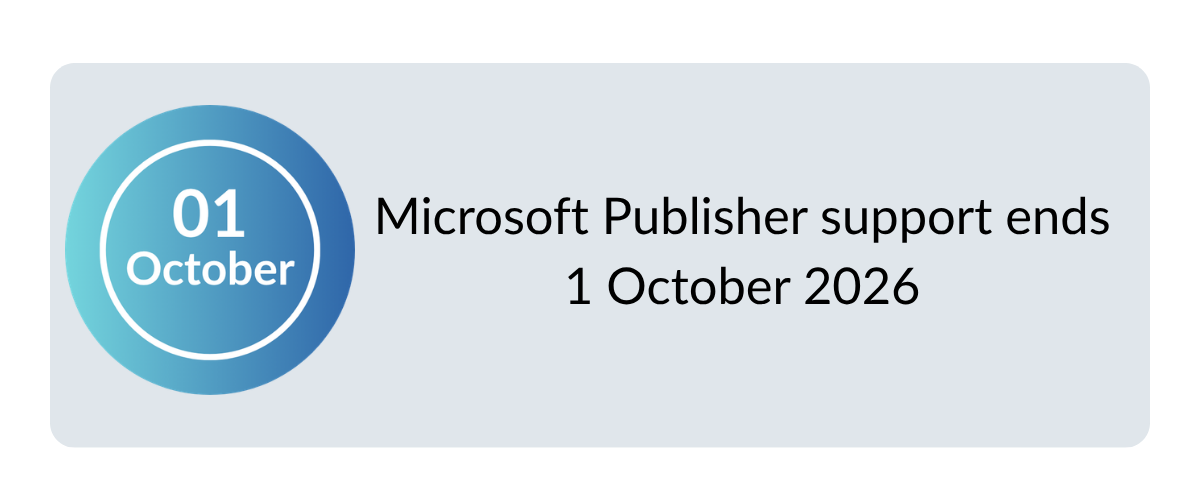
Microsoft Publisher reaches the end of support on 1 October 2026.
From that date:
- Publisher will no longer be included with Microsoft 365.
- Microsoft 365 subscribers will no longer be able to access Publisher.
- Existing on-premises versions will no longer be supported.
- Publisher will no longer be available to install or download through Microsoft 365.
People with a perpetual version of Publisher may still be able to install and use it, but the application will no longer receive updates or technical support.
Microsoft recommends converting important Publisher files before the deadline. You can continue using Publisher normally until then, so there is still time, but please don’t leave the job until the last minute.
You can read the full announcement on the Microsoft Publisher support page.
What will happen to my Publisher files?
Publisher files normally use the .pub file format.
After October 2026, Microsoft 365 users will no longer be able to open or edit these files in Publisher. Other design applications will not necessarily open them correctly either.
Before Publisher disappears, I recommend that you:
- Search your computer, OneDrive and SharePoint for
.pubfiles. - Identify the files you still use.
- Export important files as PDFs;
- Rebuild frequently used templates in your chosen replacement.
A PDF will preserve the appearance of a document, but it is not always easy to edit. Microsoft suggests opening a converted PDF in Word when editable text is needed, although complex layouts and graphics may move during conversion.
Is there a direct replacement for Publisher?
Not exactly.
Publisher combined several different types of work in one application. It could handle everything from labels and mail merges to posters and complex printed booklets.
No single alternative is best at all of those tasks.
Instead of asking, “What replaces Publisher?”, it is more useful to ask:
What do I create in Publisher, and which application handles that particular job best?
Here are the strongest options.
1. Canva: best for worksheets and visual resources
Canva is likely to be the most attractive option for teachers, trainers and small organisations creating:
- Worksheets and handouts
- Posters and classroom displays
- Certificates
- Flyers
- Simple brochures
- Social media graphics
- Presentations
- Visual learning resources
It is easy to use, works in a web browser and includes a huge collection of templates, photographs, illustrations and design elements. Designs can be shared with colleagues, edited collaboratively and reused as templates.
Eligible primary and secondary teachers can also access Canva Education, which includes many premium features at no cost.
However, Canva should not be treated as “Publisher in a browser”. The way it handles text, pages, templates and printing is very different.
Long, text-heavy documents can become awkward, and Canva does not reproduce every advanced Publisher workflow. Booklets should always be test printed, particularly when using double-sided printing, folds, trimming or bleed.
Choose Canva when: the resource is short, visual and likely to be shared or adapted by other people.
My verdict: The best general option for visually engaging teaching resources, worksheets and everyday designs.
2. Microsoft Word: best for text-heavy documents
Word is the most sensible choice for:
- Long worksheets and manuals
- Newsletters containing substantial text
- Forms
- Letters
- Envelopes and labels
- Mail merges
- Reports
- Accessible documents
- Documents requiring headings, page numbers or contents pages
Microsoft itself recommends Word for many common Publisher tasks, including labels, envelopes, letterheads, newsletters and folded-paper projects.
Word is not as visually flexible as Publisher, but it handles long text far more effectively than Canva. Styles, section breaks, tables, columns, headers and footers can be used to produce professional documents.
It is also likely to be familiar and may already be included in your organisation’s Microsoft 365 subscription (if you have one).
Choose Word when: the words and structure are more important than free-form visual design.
My verdict: The best option for documents where the words and structure matter more than decorative page design.
3. PowerPoint: surprisingly useful for posters and flyers
PowerPoint is often overlooked as a Publisher alternative, but it is excellent for single-page visual layouts.
You can change the slide size to A4 or another custom size and then position text, pictures and shapes freely. The completed design can be exported as a PDF for printing.
PowerPoint works particularly well for:
- Posters
- Signs
- Certificates
- Flyers
- Simple brochures
- Visual instructions
- Classroom displays
- One-page information sheets
It feels more like Publisher than Word because objects can be placed freely on the page.
However, it is not ideal for long documents or publications where text must flow automatically between several pages.
Choose PowerPoint when: you want precise visual positioning and already work within Microsoft 365.
My verdict: An excellent option for posters, certificates, signs and other highly visual single-page resources.
4. Affinity: best for professional page layout
For people who used Publisher for complex booklets, magazines or print-ready publications, Affinity may be the closest alternative.
The former separate Affinity Publisher, Designer and Photo applications have been combined into one professional creative application. Its Layout tools are designed for books, magazines, brochures and other detailed publications.
Affinity offers more advanced control over:
- Linked text frames
- Master pages
- Typography
- Colour management
- Bleed and crop marks
- CMYK colour
- PDF/X output
- Professional print preparation
The current Affinity application is available to download free, although some connected Canva features may depend on your Canva account.
It is considerably more powerful than Canva, but it also has a steeper learning curve. Existing Publisher publications will generally need to be rebuilt rather than simply opened and converted.
Choose Affinity when: accurate layout and professional printing matter more than simplicity.
My verdict: The strongest free option for people who need a serious desktop publishing replacement.
5. Scribus: best free open-source publishing option
Scribus is a free, open-source desktop-publishing application.
It includes professional features such as:
- Master pages
- Linked text frames
- Layers
- Colour management
- Precise object positioning
- Print-ready PDF output
It is a credible option for booklets, newsletters and other complex publications, particularly when budget is the main concern.
The disadvantage is that Scribus is less immediately friendly than Canva, Word or PowerPoint. Its interface and workflow can take time to learn, especially for people who only create occasional publications.
Choose Scribus when: you need genuine desktop-publishing features and want a completely free, open-source application.
My verdict: Powerful and completely free, but better suited to confident users than occasional designers.
6. Adobe Express: another easy visual-design option
Adobe Express is similar to Canva and works well for posters, flyers, simple handouts and social media content.
Its free plan includes templates, fonts, Adobe Stock assets and basic document-editing tools. Adobe also offers a free education plan for eligible primary and secondary educators.
It is attractive for organisations already using Adobe products, although it is not a direct replacement for Publisher’s more advanced booklet and print-layout features.
You can compare the current options on the Adobe Express UK pricing page.
Choose Adobe Express when: you want quick template-based design and already use the Adobe ecosystem.
My verdict: The strongest option for people who are already familiar with Adobe software.
Which Publisher alternative should you choose?
Here is my practical starting point:
| What you create | Best place to start |
|---|---|
| Worksheets and handouts | Canva or Word |
| Posters and classroom displays | Canva or PowerPoint |
| Certificates and flyers | Canva or PowerPoint |
| Long manuals and workbooks | Word |
| Labels, envelopes and mail merges | Word |
| Simple visual booklets | Canva, with careful print testing |
| Complex professional booklets | Affinity |
| Free professional desktop publishing | Scribus |
| Adobe-based visual content | Adobe Express |
For many schools and organisations, the answer will not be one application.
A sensible combination might be:
- Canva for visual resources and collaborative templates
- Word for long or structured documents
- PowerPoint for posters and precisely positioned one-page layouts
- Affinity for complex, professional print work
Do not convert everything automatically
You probably have Publisher files that have not been opened for years.
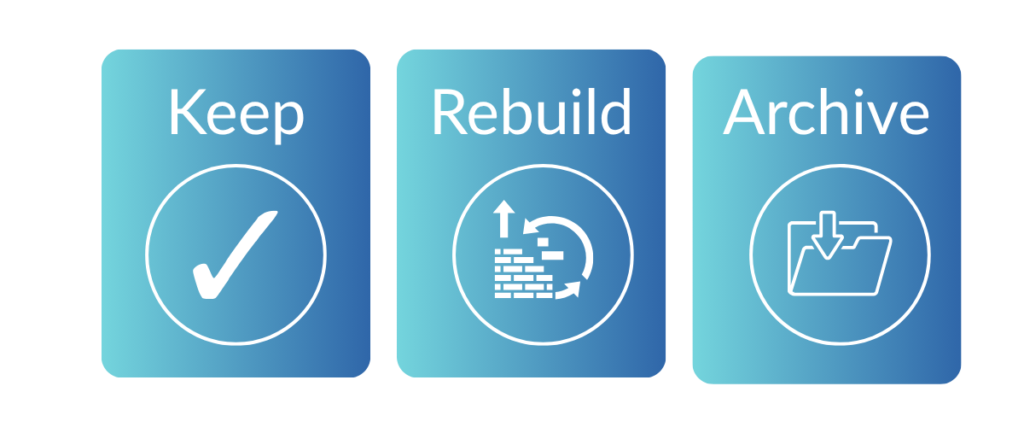
Rather than rebuilding every file, sort them into three groups:
Keep
Current publications that are still accurate and regularly used.
Rebuild
Important templates and resources that will continue to be edited.
Archive
Old publications that only need to be retained for reference. Export these as PDFs and keep the original .pub files.
Start by rebuilding one frequently used document. Test the layout, accessibility and printing before converting a complete set of resources.
The most important step is to start now
Publisher will continue working until October 2026, but the files will not become easier to deal with after it disappears.
Begin by locating your .pub files and saving PDF copies of anything important. Then experiment with the alternatives using a real publication—not just a blank template.
Your existing design skills have not been wasted. Alignment, spacing, hierarchy, consistency and careful print testing remain important in every application.
The software is changing. Good design principles are not.
Need help moving away from Publisher?
Just Click Here provides friendly, practical IT training for people who want technology to feel useful rather than intimidating.

If your school, team or organisation is moving from Microsoft Publisher to Canva, Word or PowerPoint, I can help you understand the differences, rebuild useful templates and develop a workflow that works for the resources you actually create. Use our contact form here or browse our courses here.