
Dates in Excel can feel confusing at first, especially when a date suddenly turns into a number, a formula skips weekends, or a deadline does not land where you expected.
The good news is that Excel has a set of useful date functions that can do a lot of the hard work for you. The key is knowing which function to use for the job.
This guide covers the most useful Excel date functions, common problems to watch out for, and practical examples you can try.
First: the important thing to know about Excel dates
Excel stores dates as numbers behind the scenes. This means you can add, subtract and calculate with dates.
In Excel, dates are just numbers wearing date formatting.
Excel stores 1 August 2026 as the number 46235.
Type a whole number in the formula bar to reveal its Excel date.
For example:
=A2+30If A2 contains an invoice date, this returns a date 30 calendar days later.
If your formula result looks like a number instead of a date, the formula may be correct — the cell may simply need date formatting.
Understanding Excel date format codes
Excel dates are stored as numbers, but you can change how they look by using date format codes.
For example, the same date could be displayed as:
| Format code | Example result |
|---|---|
dd/mm/yyyy | 03/08/2026 |
d-mmm-yyyy | 3 Aug 2026 |
dddd d mmmm yyyy | Monday 3 August 2026 |
mmm-yy | Aug-26 |
mmmm | August |
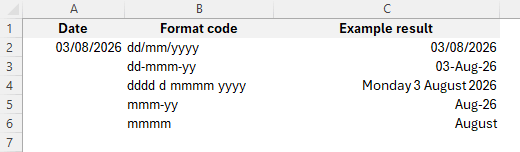
Common date format codes:
| Code | What it shows | Example |
|---|---|---|
d | Day number | 3 |
dd | Day number with leading zero | 03 |
ddd | Short day name | Mon |
dddd | Full day name | Monday |
m | Month number | 8 |
mm | Month number with leading zero | 08 |
mmm | Short month name | Aug |
mmmm | Full month name | August |
yy | Two-digit year | 26 |
yyyy | Four-digit year | 2026 |
To apply a custom date format:
Right-click the cell → Format Cells → Number → Custom
Then type the format you want, for example:
dddd d mmmm yyyyThis would display a date as:
Monday 3 August 2026Important: changing the format only changes how the date looks. It does not change the actual date value stored in the cell.
Quick guide: which Excel date function do you need?
| Need to… | Use this function |
|---|---|
| Show today’s date | TODAY() |
| Show current date and time | NOW() |
| Create a reliable date | DATE() |
| Extract day, month or year | DAY(), MONTH(), YEAR() |
| Show the day name | TEXT() |
| Find the day-of-week number | WEEKDAY() |
| Find the week number | WEEKNUM() or ISOWEEKNUM() |
| Add or subtract months | EDATE() |
| Find the end of a month | EOMONTH() |
| Add working days | WORKDAY() |
| Count working days | NETWORKDAYS() |
| Use custom weekends | WORKDAY.INTL() / NETWORKDAYS.INTL() |
| Convert a text date into a real date | DATEVALUE() |
| Calculate complete days, months or years between dates | DATEDIF() |
| Calculate a fraction of a year | YEARFRAC() |
Using Excel Date Functions
1. TODAY and NOW
Use TODAY() when you want the current date.
=TODAY()Use NOW() when you want the current date and time.
=NOW()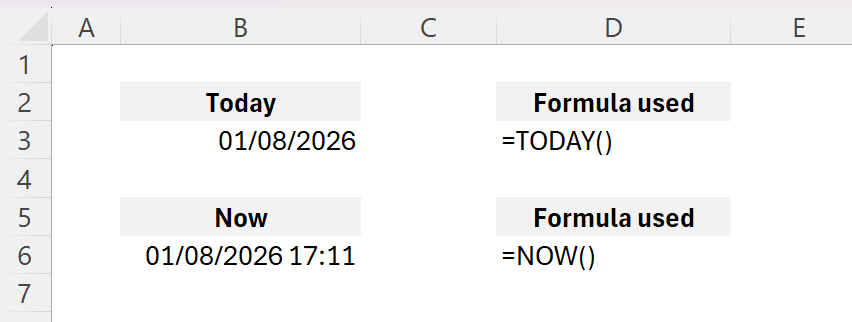
2. DATE
Use DATE() to create a proper Excel date from separate year, month and day values.
=DATE(2026,8,1)This returns 1st August 2026.
This is often safer than typing dates as text, especially when working with both UK and US date formats.

Try it: Fix a Broken Date
Type a common broken format (e.g., 12.11.2026 or 12112026):
Fixed Format: Waiting...
Excel Formula: ...
3. DAY, MONTH and YEAR
These functions extract parts of a date.
=DAY(A2)
=MONTH(A2)
=YEAR(A2)
Use these when you need to group, analyse or report by day, month or year.
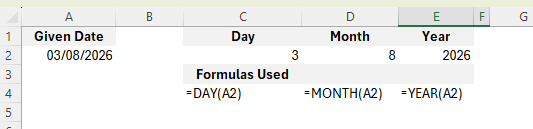
Test Your Skills: Extract the Data
Cell A2 contains a date. Type the exact Excel formulas required to extract the Year, Month, and Day into the correct columns below.
| A (Date) | B (Year) | C (Month) | D (Day) |
|---|---|---|---|
| 18/07/2026 |
Awaiting input... Reference cell A2.
Putting it together –
The Final Test: Break It Apart & Put It Together
Cell A2 contains the original date. Extract the components, then use the DATE function in column E to rebuild it by referencing your newly extracted cells.
| A (Date) | B (Year) | C (Month) | D (Day) | E (Rebuild Date) |
|---|---|---|---|---|
| 18/07/2026 |
Awaiting input... Reference the correct cells to proceed.
4. TEXT
TEXT() is not strictly a date function, but it is very useful with dates.
For example, to show the day name:
=TEXT(A2,"dddd")This could return something like Monday.
5. WEEKDAY, WEEKNUM and ISOWEEKNUM
Use WEEKDAY() to find the day-of-week number.
=WEEKDAY(A2,2)The 2 means Monday = 1 and Sunday = 7.
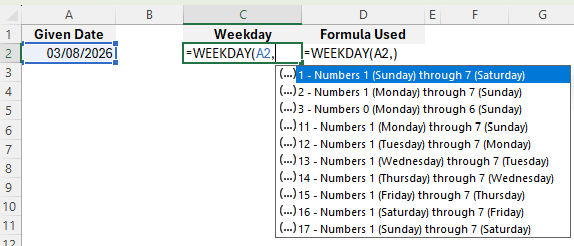
Use WEEKNUM() for a standard week number:
=WEEKNUM(A2,2)Use ISOWEEKNUM() if you need ISO week numbering:
=ISOWEEKNUM(A2)6. EDATE
Use EDATE() to add or subtract whole months.
=EDATE(A2,3)This adds 3 months to the date in A2.
To subtract months:
=EDATE(A2,-3)Use it for renewal dates, review dates, subscription dates and follow-up reminders.
7. EOMONTH
Use EOMONTH() to find the end of a month.
=EOMONTH(A2,0)This returns the last day of the same month as the date in A2.
For the end of next month:
=EOMONTH(A2,1)For the end of the previous month:
=EOMONTH(A2,-1)Use it for month-end reporting, payroll cut-offs, invoice periods and deadlines.

Challenge: Calculate the Expiration Date
The Cosmic Close just received a batch of Asteroid Espresso Beans. They expire on the last day of the month, exactly 3 months from the delivery date. Write the EOMONTH formula in cell C2 to calculate this dynamically.
| A | B | C | |
|---|---|---|---|
| 1 | Delivery Date | Shelf Life (Months) | Expiry Date |
| 2 | 10/09/2026 | 3 |
Awaiting input...
8. WORKDAY
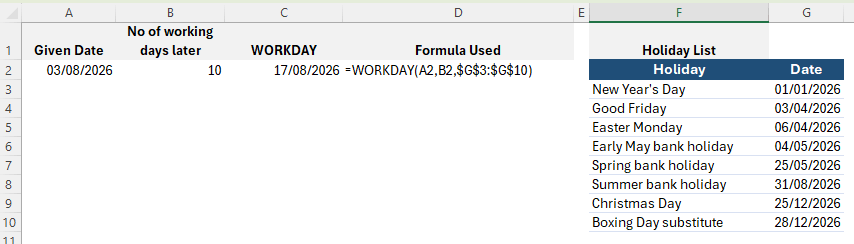
Use WORKDAY() to calculate a date after a set number of working days.
=WORKDAY(A2,10)This returns the date 10 working days after the date in A2, excluding Saturdays and Sundays.
If you have a holiday list in G2:G10, use:
=WORKDAY(A2,10,$G$2:$G$10)This excludes weekends and the dates in your holiday list.
Use it for project deadlines, invoice due dates, follow-up dates and service-level agreements.
9. NETWORKDAYS
Use NETWORKDAYS() to count working days between two dates.
=NETWORKDAYS(A2,B2)With holidays:
=NETWORKDAYS(A2,B2,$F$2:$F$10)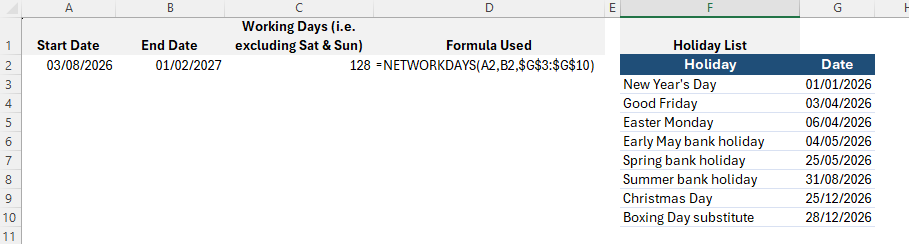
Watch out: NETWORKDAYS() includes the start date and end date if they are working days.
Challenge: Calculate Turnaround Time
The Cosmic Close needs to measure their delivery speed. If you just subtract the dates (B2-A2), your data will be ruined by including the weekends. Use the NETWORKDAYS function in cell C2 to calculate the actual business days between the Order Date and the Delivery Date.
| A | B | C | |
|---|---|---|---|
| 1 | Order Date | Delivery Date | Business Days |
| 2 | 02/09/2026 | 15/09/2026 |
Awaiting input...
10. WORKDAY.INTL and NETWORKDAYS.INTL
Use the .INTL versions when weekends are not simply Saturday and Sunday.
=WORKDAY.INTL(A2,10,"0000011",$F$2:$F$10)The weekend pattern uses seven digits, Monday to Sunday. A 1 means non-working day.
For example:
0000011= Saturday and Sunday are weekends0000110= Friday and Saturday are weekends
These functions are useful if your organisation has different working patterns.
11. DATEVALUE
Use DATEVALUE() when a date is stored as text and Excel needs to recognise it as a real date.
=DATEVALUE(A2)Watch out: ambiguous dates can cause problems. For example, 06/07/2026 may be interpreted differently depending on regional settings. Use clear dates or the DATE() function where possible.
12. DATEDIF
DATEDIF() calculates the difference between two dates in days, months or years.
=DATEDIF(A2,B2,"d")Common units include:
| Unit | Meaning |
"d" | complete days |
"m" | complete months |
"y" | complete years |
Example:
=DATEDIF(A2,B2,"m")This returns the number of complete months between the two dates.
Watch out: DATEDIF() is a legacy function and may not appear in autocomplete, but it can still be useful for older workbooks and certain date-difference tasks.
Challenge: Calculate Years of Service
Excel's DATEDIF function is a secret—it doesn't have a tooltip to guide you. The Cosmic Close wants to calculate how many full years a barista has worked. Write the DATEDIF formula in cell C2 to calculate the years between the Hire Date and Today's Date.
| A | B | C | |
|---|---|---|---|
| 1 | Hire Date | Today's Date | Years Worked |
| 2 | 14/03/2019 | 10/09/2026 |
Awaiting input...
13. YEARFRAC
Use YEARFRAC() to calculate the fraction of a year between two dates.
=YEARFRAC(A2,B2)This can be useful for service length, time elapsed or finance-style calculations.
Watch out: if you need precise financial results, check the optional basis argument.
14. TIME, HOUR and MINUTE
Excel stores times as fractions of a day.
Use TIME() to create a time:
=TIME(14,30,0)Use HOUR() and MINUTE() to extract parts of a time:
=HOUR(A2)
=MINUTE(A2)
If a cell contains a date and time, you can extract just the time using:
=MOD(A2,1)Format the result as Time.
Quickly enter & format a date using keyboard shortcuts
- Click into a cell
- Press
Ctrl + ;to enter today’s date - Press
Ctrl + Enterto confirm - Press
Ctrl + #to apply a date format
Common Excel date problems
Dates stored as text
The date looks normal, but formulas do not work properly.
Try:
DATEVALUE()- Text to Columns
- re-entering the date
- using
DATE(year,month,day)
Dates appear as numbers
Excel may show a number such as 46174 instead of a date. The date is probably valid; the cell just needs date formatting.
UK / US date confusion
Avoid ambiguous date text such as 06/07/2026. Use clear dates or DATE(2026,7,6).
TODAY and NOW keep changing
That is what they are designed to do. If you need a fixed value, copy and paste as values after entering it.
Working-day formulas ignore holidays
WORKDAY() and NETWORKDAYS() only skip weekends, unless you add a holiday list (in which case it will ignore any holiday dates too).
Week numbers do not match
Check whether you need WEEKNUM() or ISOWEEKNUM().
Dates shift by about four years
This can happen when copying between workbooks using different date systems, such as the 1900 and 1904 date systems.
Download the practice file
I have created a practice workbook with sample data, worked examples, practice tasks, answers and common problems to discuss.
Download the workbook here
Download the Common Problems with Dates in Excel .PDF guide here
Use it to practise:
TODAYNOWDATEDAY,MONTH,YEARWEEKDAY,WEEKNUM,ISOWEEKNUMEDATE,EOMONTHWORKDAY,NETWORKDAYSDATEVALUEDATEDIFYEARFRAC
Final reminder
If you remember one thing, remember this: Excel dates are numbers dressed up with date formatting.
Once that makes sense, date formulas become much easier to understand.
Once that makes sense, date formulas become much easier to understand.
AI Use Transparency: ChatGPT assisted with the code for the interactive block showing numbers with and without date formatting. The feature was tested and edited by Just Click Here. Gemini assisted with the interactive learning blocks, again tested and edited by Just Click Here.